At a glance
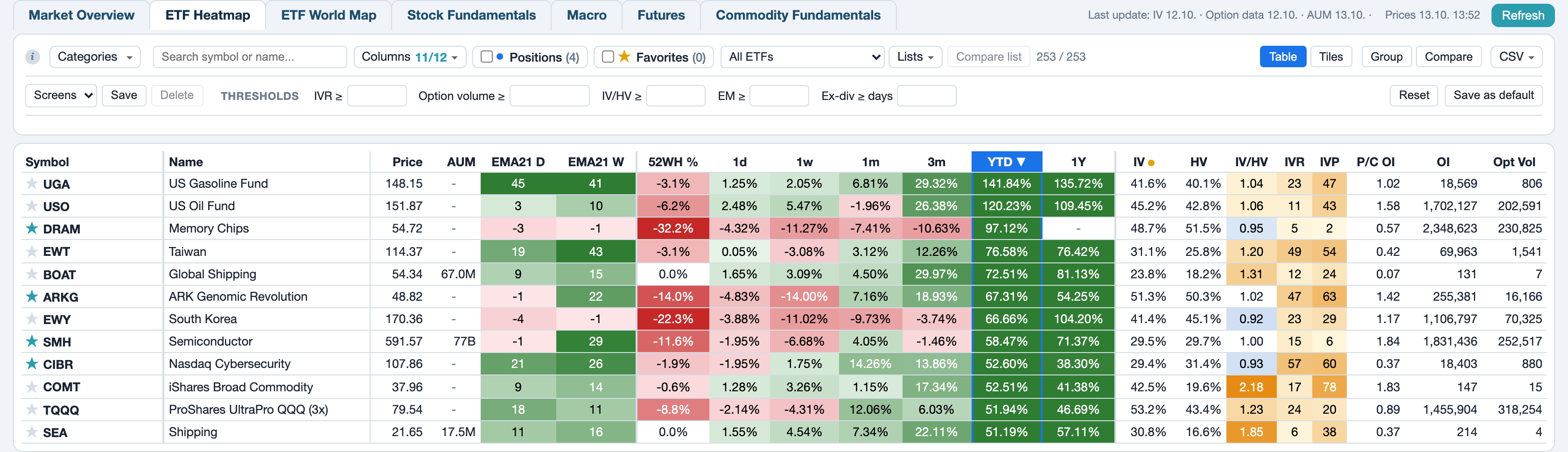
What: The ETF heatmap shows about 250 US-listed ETFs in 17 categories with price changes from one day to three years, trend counters and option data.
Where: Market > ETF Heatmap. The ETF World Map in the tab next to it uses the same chart panel.
Requirement: Foliograph fetches prices and option data through TWS and stores them. Without TWS the heatmap shows the last stored state.
Categories
Categories on the left of the toolbar chooses which groups the table shows: US Broad, Size & Style (value, growth, mid and small caps), Dividend, Sectors, Sub-Sectors, International, Emerging Markets, Countries, Thematic, Bonds & Rates, Commodities, Agriculture, Currencies, Volatility, Crypto, Leveraged and Inverse. All switches every category at once. Foliograph remembers the choice on this computer.
The search box next to it filters by symbol or name. On its right you see how many rows of how many are shown.
Columns
The Columns menu groups the columns: Category, Price, AUM (fund assets from the latest NPORT-P filing with the SEC, empty for trusts without such a filing like GLD or IBIT), EMA21 D and EMA21 W, Distance (to the 52-week high and to the EMA21), the price changes from 1 day to 3 years and Options / Volatility. Untick groups or single columns and confirm with Apply. Reset to default restores the 21 columns that fit a notebook screen without horizontal scrolling.
- EMA21 D and EMA21 W count for how many consecutive days or weeks the close has been above (positive, green) or below (negative, red) its 21-period EMA.
- 52WH % is the distance of the last close to the highest close of the last 52 weeks.
- RSL is the Relative Strength after Levy: last weekly close divided by the average of the weekly closes. You set the period on the RSL page. The column starts hidden, show it via Columns.
- Options / Volatility: IV (30-day implied volatility), IV 1W (change of the IV in percentage points over five trading days), HV (realized volatility), IV/HV, IVR (where the IV sits between its 52-week low and high), IVP (share of the last 52 weeks' days with a lower IV), EM (expected move), put/call ratios of volume and open interest, open interest, average option volume and the days until the next ex-dividend date.
Every column header explains itself in a tooltip. A click sorts, a second click reverses the direction. Foliograph saves the column choice and it stays after a restart.
Thresholds
The second toolbar row holds five boxes under Thresholds: IVR ≥, Option volume ≥, IV/HV ≥ and EM ≥ hide ETFs below the value you enter. Ex-div ≥ days hides ETFs whose next ex-dividend date is closer. ETFs without a known date stay visible.
Save as default keeps the current values for every page load. Reset clears all filters and shows every category again. Each active filter appears as a chip in a row of its own, the x on a chip removes that filter alone.
Screens
A screen is a saved combination of everything the toolbar holds: thresholds, categories, search text, the Positions and Favorites chips, the picked list, sorting and grouping.
- Set up the view.
- Click Save under Screens, type a name and confirm with Save or Enter.
- Later, pick the screen in the dropdown and the view is back. Delete removes the picked screen.
Saving under an existing name replaces it. Up to twenty screens per account are possible.
Favorites and lists
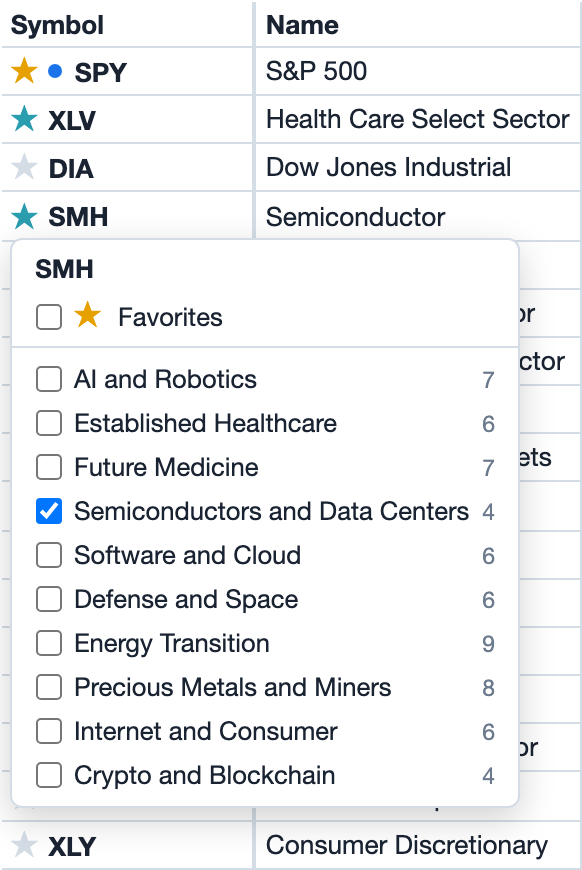
A click on the star in front of the symbol opens a menu. Favorites comes first, your lists follow with one checkbox each. An ETF can be a favorite and sit in several lists at the same time. The colour of the star shows where it is saved:
- Yellow: the ETF is a favorite.
- Blue-green: the ETF sits in at least one list but is no favorite.
- Grey: the ETF is neither a favorite nor in a list.
The blue dot next to the star means you hold the ETF.
- The Favorites chip filters to your favorites, the number in brackets counts them.
- The list dropdown shows one list at a time. The Lists menu next to it creates, renames and deletes lists.
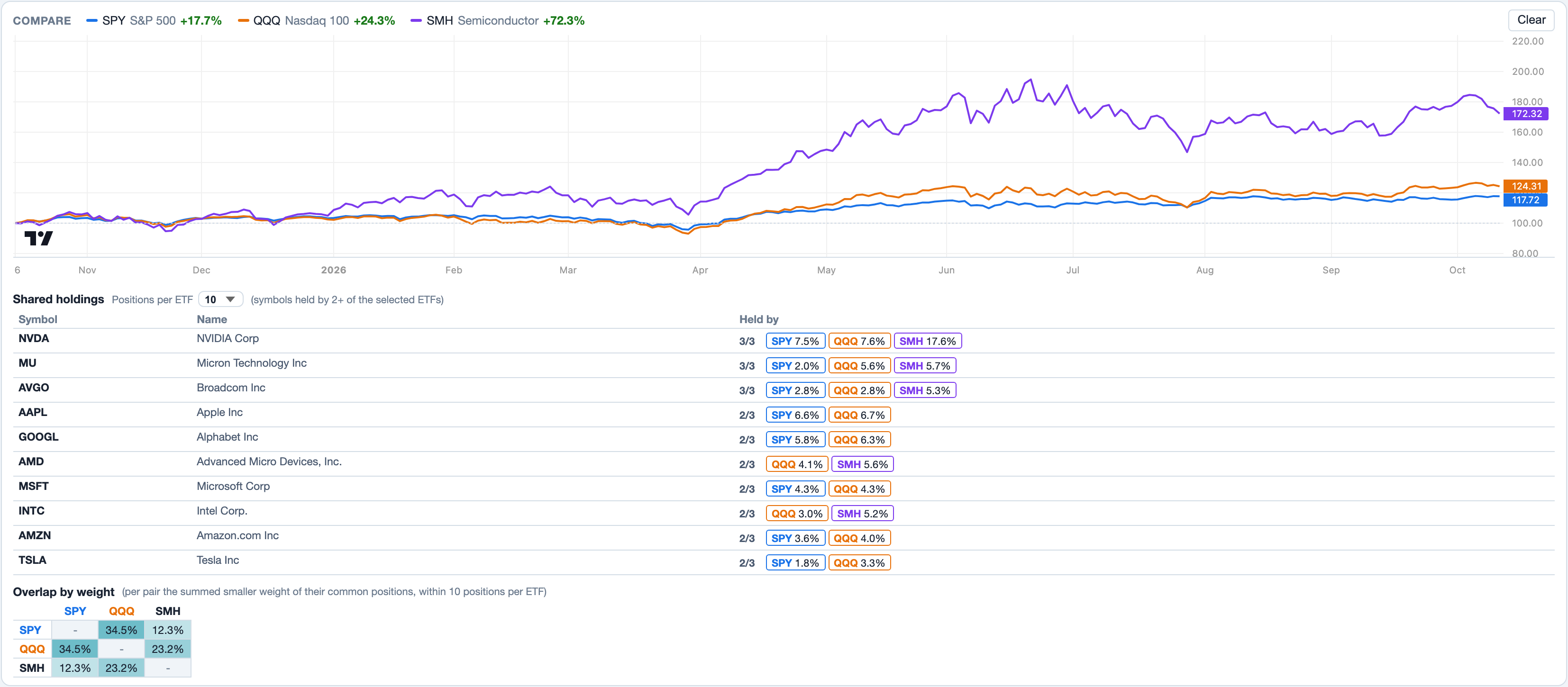
- Compare list draws up to twelve ETFs of the picked list as lines that all start at 100. Below it, Shared holdings and a matrix show how much the funds of the list overlap.
On first use Foliograph sets up a few theme lists, which you can change or delete. Favorites, lists and screens belong to your account and are part of the backup.
Your own positions
ETFs you hold carry a blue dot in front of the symbol: open stock trades and the underlyings of open options in your journal. The Positions chip filters to these rows. Together with Favorites it shows everything that is held or starred. The dot follows the journal, a closed trade drops out on the next page load.
Group and compare
- Group arranges the table by category, with a heading per category, the number of ETFs and the median of the sorted column.
- Compare puts a checkbox in front of every symbol. Tick up to three ETFs and a chart of their closes of the last year appears above the table, all starting at 100. Distributions are not included. Below it, Shared holdings lists the positions with their weight in each fund. How deep Foliograph looks into every fund is set with Positions per ETF. The Overlap by weight matrix shows for each pair how much the two funds overlap. For every shared position the smaller of the two weights counts.
Tiles
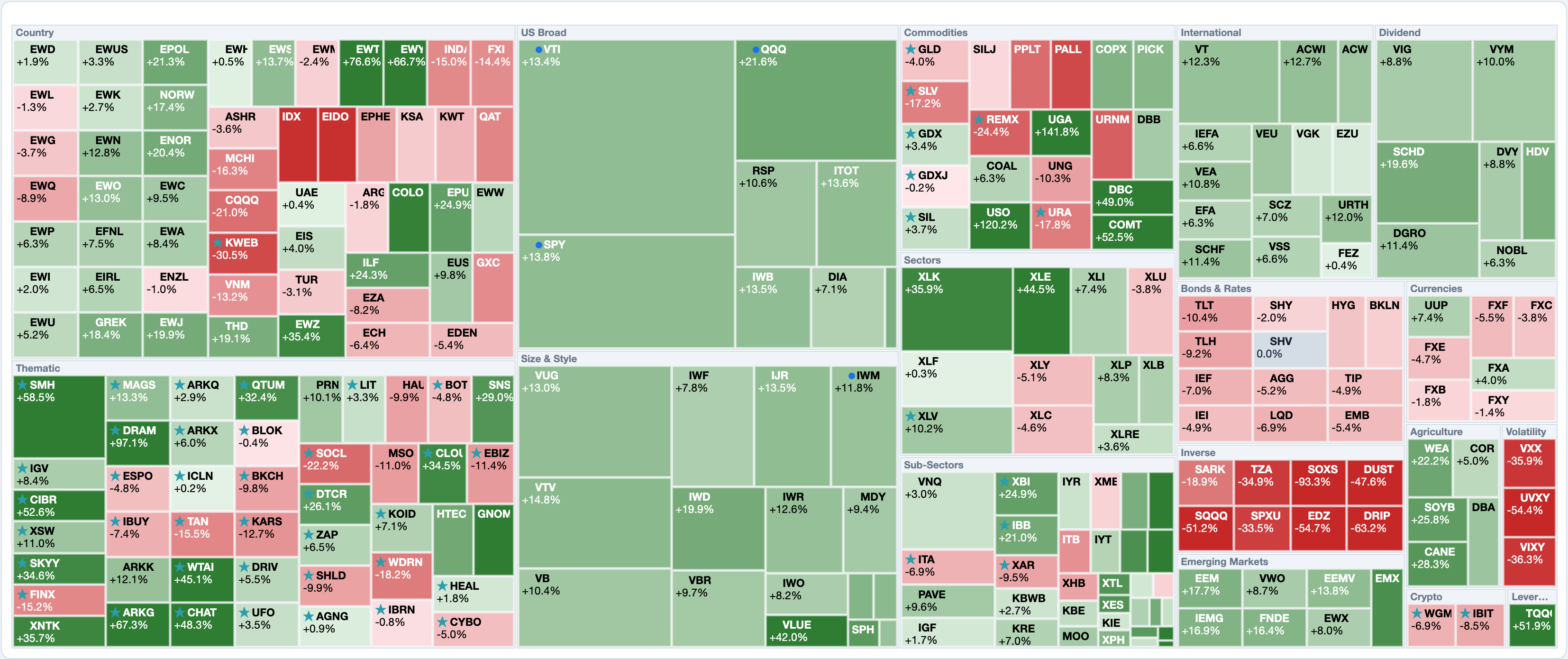
The Table / Tiles switch on the right of the toolbar turns the list into a treemap: one block per category, one tile per ETF. The area grows with the fund's assets, the colour shows the price change over the period you pick in the dropdown next to the switch. Every filter applies to both views and a click on a tile opens the chart panel.
The chart panel
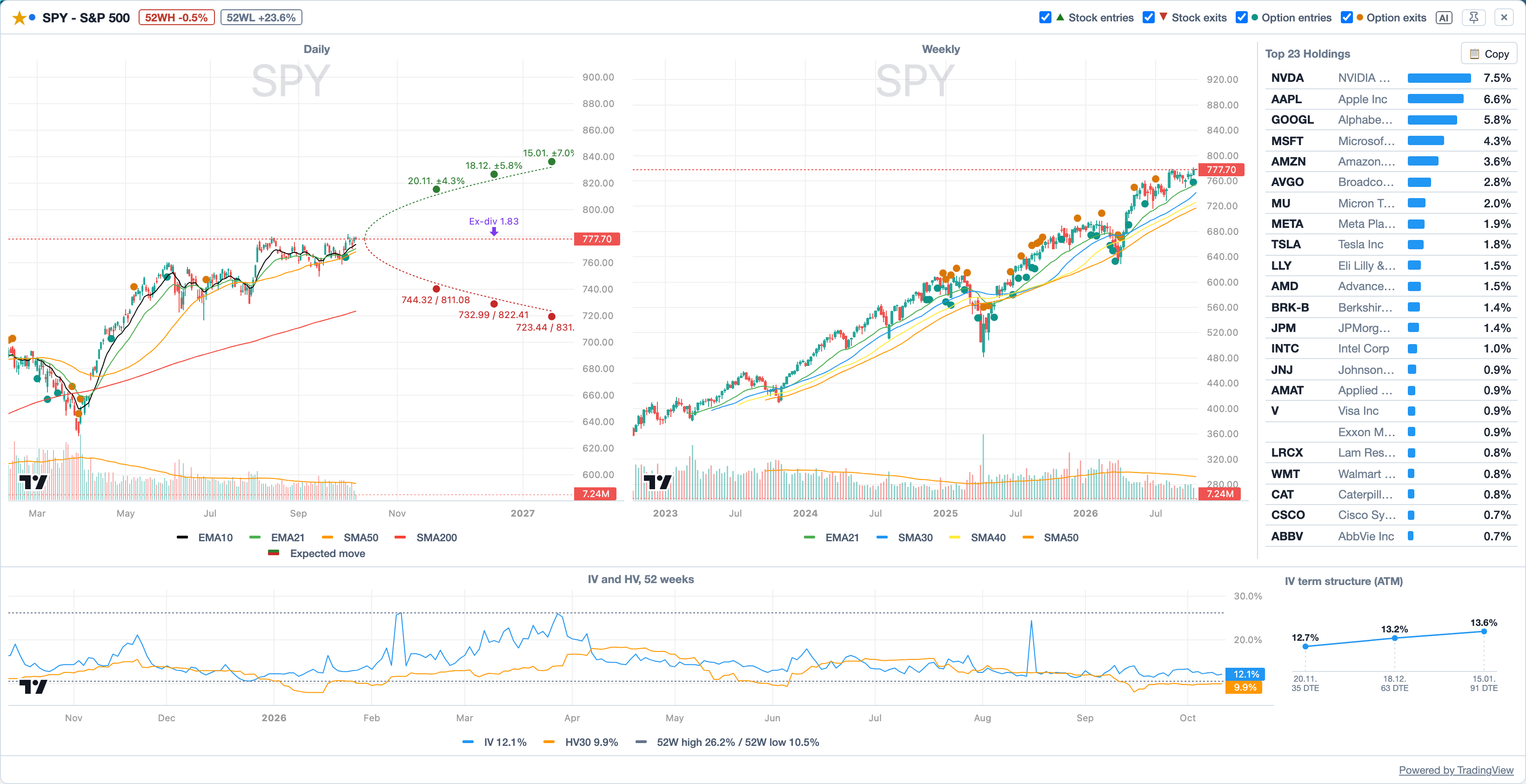
A click on a row or on the chart icon next to the symbol opens the chart panel. The arrow keys step to the next ETF, Escape closes the panel.
Charts
On the left the daily chart with EMA10, EMA21, SMA50 and SMA200, next to it the weekly chart. The chips in the header show the distance to the 52-week high and low. The next ex-dividend date is marked with an arrow and the amount.
Expected move (cone)
The cone on the daily chart shows the expected move for the next monthly expiries, a range of one standard deviation derived from option prices. While TWS is running, Foliograph derives it from the prices of the at-the-money straddles: straddle price times 1.25, so it equals one standard deviation like the EM column. Without TWS it uses the stored implied volatility. The dots on the cone state the range per expiry in percent and as a price. How many expiries it shows is set under Settings > General with Expected move: monthly expiries.
The cone describes how the option market prices the coming weeks, not a forecast.
IV and HV
Below the charts, IV and HV, 52 weeks shows the implied volatility (blue), the realized volatility (orange) and, dashed, the 52-week high and low of the IV. The HV window is set under Settings > General. Next to it the IV term structure (ATM) lists each expiry while TWS is running.
Your trades on the chart
When the journal holds stocks or options on this ETF, the chart marks every fill: entries below the bar, exits above it, stocks as arrows and options as dots. Four toggles in the header show or hide Stock entries, Stock exits, Option entries and Option exits.
Holdings and AI
On the right are the fund's largest positions, as many as fit the height. Copy puts their symbols on the clipboard as a list. The panel header carries the star, the dot for your own positions and the AI menu. How the AI analysis works and which data leaves your computer is described under AI analysis.
Pinning
The pin in the header chooses where the panel sits. Floating, it opens at the ETF and closes on a click outside. Pinned, it sits below the table, the tiles or the map and stays open while you click through the ETFs. The choice applies to the heatmap and the world map and Foliograph remembers it.
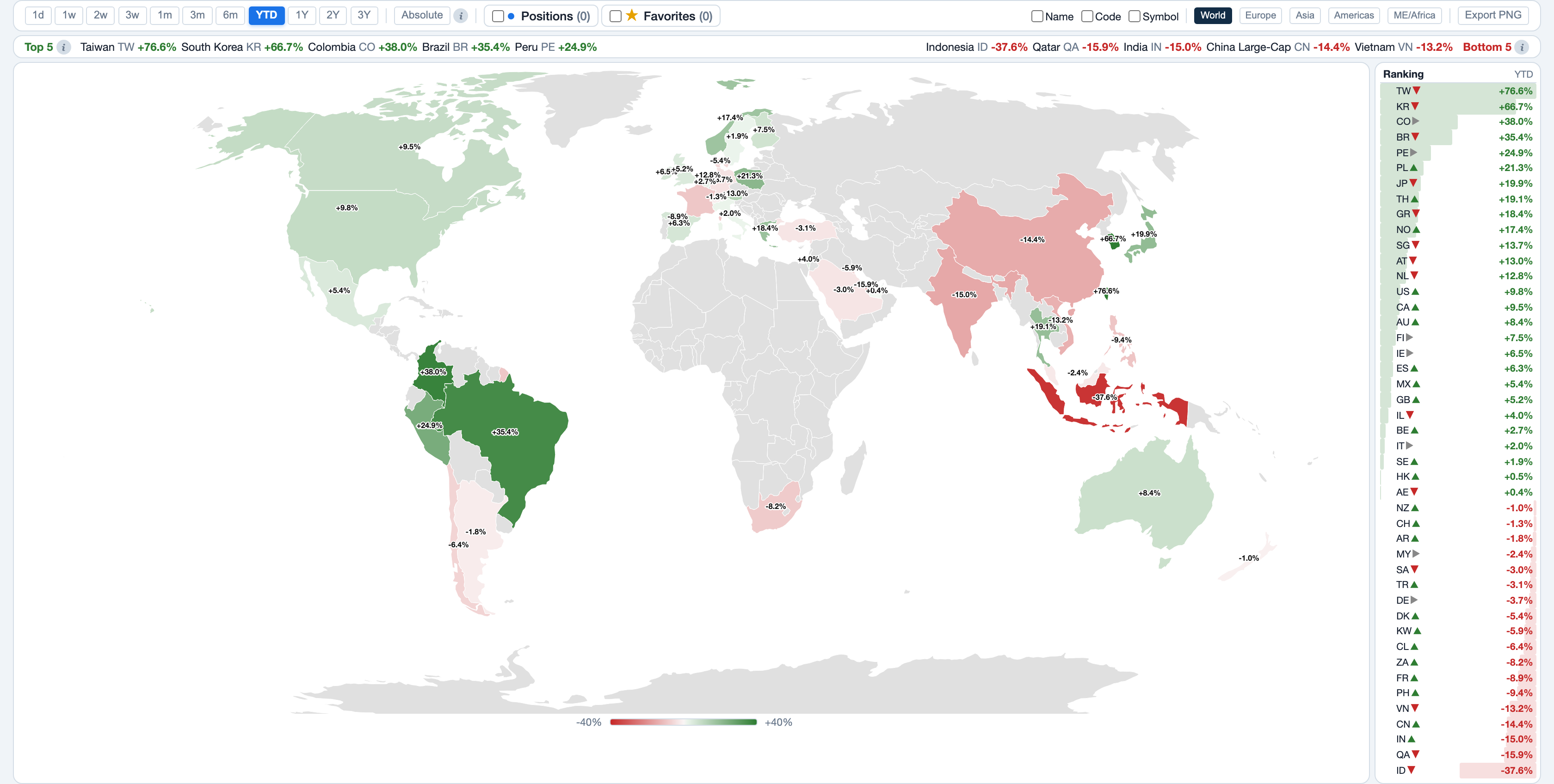
ETF world map
The ETF World Map colours each country by the price change of its country ETF over the chosen period, in USD. A click on a country, on an entry of the ranking or of the strip with the five strongest and weakest countries opens the same chart panel as on the heatmap. Shift-click compares up to five countries. The Absolute button switches to vs SPY and vs ACWI, the difference to the benchmark in percentage points. The star, the dot and the Positions and Favorites chips work as on the heatmap.
Export
The CSV menu downloads the ETFs currently shown, with filters, search and sorting:
- Symbols only: symbol, name and category, for example for a TradingView watchlist.
- As displayed: the columns the table currently shows.
- All columns: hidden ones included.
On the world map, Export PNG saves the current map view as an image.
Where the data comes from
| Data | Source and update |
|---|---|
| Prices | From TWS, fetched every 10 minutes |
| IV history, option volume, open interest, ex-div | From TWS, fetched hourly |
| HV, IVR, IVP | Computed by Foliograph from the stored data |
| AUM and holdings | From public SEC filings, checked for new data every 5 days, also without TWS |
At the top right, Last update: states how recent the data is. Refresh fetches the option data right away. Without TWS, prices and option data stay at their last state and the cone uses the stored IV. An empty cell names its reason in the tooltip, for example no listed options or an IV history that is too short.
Related
This page is also in the app under Help, in the language of the interface. Question not answered? Write to info@foliograph.ch or use the contact form.